Going forward, please use [email protected] for all questions.
Your previous reps won't be able to assist much at this point. Our onboarding team needs to handle the process from here!
Hours Of Operation Are: Mon-Thur. 10a-8p & 10a-6p Fridays (EST).
Welcome. Let's get moving...

Getting Non-QM Investor Leads?
Please watch this:
Meet The Client-Facing Team...

Please NOTE: We can't proceed with onboarding until payment has been received and the agreement has been signed!
The onboarding process
There are 3 onboarding zoom calls and a few steps to complete for this process.
The first onboarding call is about 30 minutes and you don't need much preparation for this but should have a credit card ready for that call.
The second call is technical and takes 1-1.5 hours to complete. You'll need to know your personal Facebook logins to complete this and if you're a commercial/non-qm lender, know your key product features as we'll collect that info then.
The 3rd onboarding call is about 30 minutes long and this is where we'll go over lead handling and answer any questions. You'll want to have done your CRM training homework before this call.
When's My Service & Recurring Billing Start?
We have 2 launch cycles in a month: You will either be launched on the 1st or the 16th of the month.
The cycle you will be on all depends on:
1. When you signed up
2. If your onboarding is completed in time
It takes us about 15 days to custom build your marketing assets & automations.
To prevent having to skip a 'Launch Cycle' we recommend onboarding ASAP.
How Recurring Billing Works If You Skip A "Launch Cycle":
The date service starts is the day your ads go live (1st or 16th of the month). So even if you are delayed in starting, this does not mean 'you're throwing away time'. If you have a recurring billing arrangement, your future bills will be in lockstep with your actual start date.
Need Help With The Process
Getting stuck or confused?
Just email us at [email protected] :
Need to book a call or call in? JUST CLICK here!
Step 1
Get the Agentgogo CRM
The first step is an agreement on the subscription AND allows us to register your CRM phone number for the FCC Stir/Shaken Regulations.
Once you've done that it will automatically take you to the 2nd step of signing up for the CRM.
When signing up choose the 100 Lead Package option unless you are a team using round robin (see below). The 100 lead option is the only one with a 30-day trial.
The other 2 options have 15-day trials only. You can always upgrade or downgrade later if needed, but for most people 100 leads will be just right.
The image below will show you what to get and explain what you are seeing while signing up. Once you signup, there is a video showing you the final remaining steps right in the CRM.
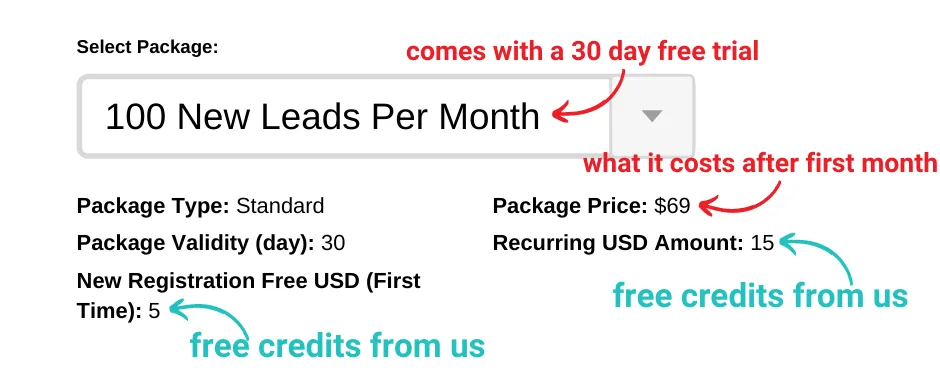
Agentgogo CRM Round Robin Notice: To use the built-in round robin feature, all secondary users will be created as sub-users to the primary user. Only one party will be billed for all the CRM subscriptions. If you are using the built-in round robin for a team, we advice getting the 50 Lead Package option (it's cheaper). Instructions on setting up secondary users are below.
Wondering if you need Agentgogo?
We highly recommend using the Agentgogo CRM over anything else (watch the video here to see why).
However, if you've already paid to have an alternative CRM integrated instead, that is fine and you can skip this step.
If for some reason you decide not to use Agentgogo CRM please note there is a $250 integration fee for other CRMs. That means we'll setup the lead data to push to the CRM but we will NOT setup any other aspect of it!
Take note
Outlook/Microsoft 365 users & possible connection issues:
- Make sure you know your Microsoft email login info and it's correct.
-
If you are unable to connect and you are certain you have the right login information, that means you will need to request the ability to login to your exchange server from your IT admins at your company because you currently do not have it. (This is somewhat common for large mortgage companies.)
-
Some companies who are very strict will NOT allow this connection. (Why is this the case?: The API connection between email addresses is a deep integration. Unlike some CRMs that 'fake or spoof' your email address, this system does NOT do that. Technically the way the API code is written means the API can read your emails - this is how it imports them into the CRM and knows to stop campaigns when a lead responds. 'Spoofing' systems can't accomplish this.) [FYI: An API is how one software program communicates with another.]
-
If you do not have Outlook Exchange server access at this time, just use Gmail for now (this can be changed later on). By doing it this way, we can proceed with setup while you get the needed permissions from IT and update to your outlook email later.
- Do not select the default email option. It will not work. If you cannot use Outlook due to work restrictions, or lack of login information, just synchronize a Gmail account.
- If you need to create a new Gmail account just go to gmail.com to do that.
-
If you already have a Gmail account but need a new one this will show how to do that: Click For Video On Setting Up A 2nd Gmail Account ).
-
The email address you use to signup with does not have to be the one you synchronize the CRM with. You could sign up with [email protected] and send emails from [email protected].
-
Lastly as an option if you request it, we can setup campaigns that do NOT send emails and only use phone communications. For Conventional Lenders, this is often just fine as typically less than 5% of leads respond via email, meaning the vast majority of conversions happen from texts and calls, not emails.
Agentgogo CRM Setup instructions
Primary user sign-up instructions
Gmail/Gsuite connection note - Important if you didn't follow the steps.
Secondary user sign-up instructions
*Only needed if you have a round robin team.
** This step is to be done AFTER signing up for the first CRM users account.
Secondary users will not sign themselves up, only the primary user will, and the primary user will initiate their accounts.
When the primary user adds their sub-users, the sub-user will get a text and email notification of their new account with a link to login and a password just like the primary user does.
They will login and go through the same setup process from there, selecting a phone number & connecting their email address.
How to sign up secondary users video:
Bookmark the CRM login link
https://app.agentgogo.com
Get The app for your phone
Not Sure If You Connected Your Email Correctly? This will help you test it...
If you find you did it wrong, just click to connect your email address. You will see the option when you're checking the status of your email address.
Step 2
Get the youcanbook.me scheduler
youcanbook.me is compatible with Gmail, GSuite and Outlook (Microsoft) (see section on taking note of a few things for important information regarding this).
Note For Round Robin Teams! We do not recommend this for teams of multiple people because there is no way to schedule with the person who was assigned the lead but there are exceptions to this. If you are on a round robin team and not sure, please CLICK HERE to watch a quick video on the limitations / workarounds.
-
Sign up using the sign up with email option. Make sure not to use the quick sign up methods offered through Google and Microsoft.
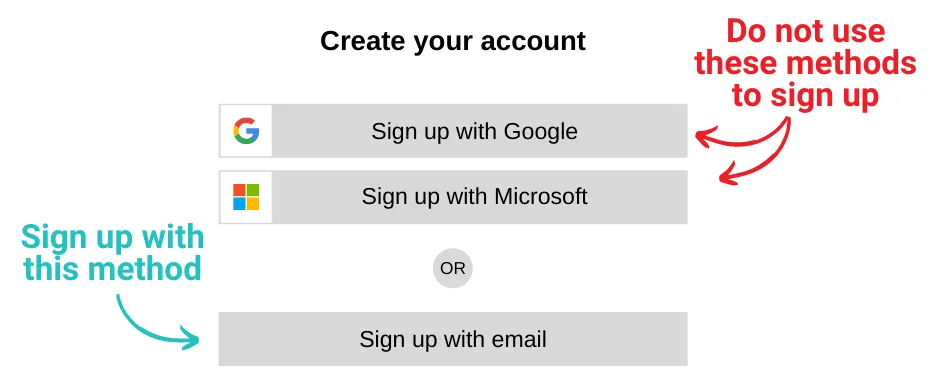
- Add your billing details.
-
Upgrade to the $10/month option (we cannot complete your setup without this subscription).
-
If the trial button is still at the top of your screen all you did was put in your card details, but you did NOT pay for the software yet. Please click the trial button to complete the payment.
-
Buy $7's worth of text messages on you behalf (this equals 100 text messages). This should last you 2-3 months on average (depending on the lead flow and whether you're using our ISA team or not).
-
To help you with setting up your Outlook calendar or click here to read an article on how to do it yourself.
Take note
-
The email address you use to signup is NOT related to the calendar you sync with (you could signup with Gmail and still sync to Outlook).
-
When you see any one of the below marked notifications, you still need to activate the subscription $10/month subscription and/or buy the text credits . Click on either one of the notifications and continue with the process to resolve the problem.
-
When syncing to Outlook, it can be a bit more challenging because you need admin level access to the account to synchronize your calendar (it's the same issue as with the CRM). Some employers will not provide that to you. If it's not working, that's almost certainly why and you may need to skip this option if you can't get admin access from your company or sync it to a gmail account instead. There are a few tiny steps you'll have to take to set this up, but we'll do 95% of the setup. Follow the videos below here after you've completed your onboarding steps to finish this.
Why is it difficult for teams to use the youcanbook.me calendar service?
The calendar can synchronize to multiple people's calendars, but it does not know who was assigned the lead - meaning there is no synchronization between who's calendar a person would book on and who actually was assigned the lead. The only work-around is to use a non-personalized, generic (branch or company) calendar and have an assistant reassigning those calls to the person who was actually assigned the lead.
Step 3
Complete your onboarding form
There's one for Conventional Lenders, one for Non-QM lenders and secondary members. If you are part of a team and you are a non-primary team member you'll need to complete a different (much shorter) form than your primary team member
You may want to make sure you have those before you begin. If you know it is going to take some time to get those you can proceed with the form and provide those later.
note on Facebook pages
If you do NOT already have a Facebook business page, you can choose to have us create one for you while filling out the onboarding form and we'll do the work!
Either way, we will NEED a Facebook business page though so you must choose one option or the other.
In fact, if you have selected a program with lead quantity guarantees, for us to meet those guarantees this is required (it was in your agreement). We do not honor lead quantity guarantees if your page is not in the correct format. You can use a company branded page if you must, but this does void lead quantity guarantees.
What Does 'Personalized Page' Mean? Here are some simple examples:
Personalized Example:
- Page name is: John Doe - Loan Officer - Nmls#943894
- Main image: is a picture of you or main team member
- Header image: contains your company and you/team members
Company Example (what we don't want):
- Page name is: XYZ Mortgage Company
- Main image: company logo
- Header image: company logo only - no mention of MLO
Why Do We Have This Rule In Place?
Years of data shows us that personalized pages far outperform company branded pages. We can never get as good of results with a company branded page as we can with a personally branded page.
What Should You Do If You Have A Company Page & Not A Personalized Page:
Facebook will almost certainly NOT let you change the name from a company branded to a personally branded one. They are very strict on page name changes. If it's too much of a change, they will not approve it. They generally only accept minor changes like spelling fixes, etc.
It's best to either create a new page or just have us do it and we will give you admin access to the page we create for you. When you fill out the onboarding form you can select to have us build a page for you as an option. This is what we'd recommend to expedite the process unless you are comfortable just quickly creating a new page. (We can always add the images for you if you want to create a page in this proper format).
OK, fill out the onboarding form, but please select the correct one!
Step 4
Agentgogo CRM Training Videos
We'd like to emphasize the importance of watching these 3 videos before your call. We will not have time to go over it in detail on the call.
We have 3 separate videos here.
The overview video is the same one inside the CRM and is 15 minutes long. It explains the core functionality and navigation of the CRM.
The 2nd video is 6 minutes long and explains how to ensure you never stop following up with leads and is a must-do for top results.
The 3rd video is 2 minutes long and is absolutely critical tiny thing to do when you get neutral responses from leads.
We also have tons of videos, coaching calls and other resources to help as-needed, so don't worry - we have you covered!!! These are just the main things to ingrain as a habit from the very beginning if you want to crush it!
And lastly - see the screenshots below videos to make a quick choice on your phone settings.
Agentgogo CRM Overview
Understanding Stages & Pipelines - Moving Leads Accordingly
Unpausing Campaigns (On Neutral Responses)
Step 4.1 (CRM Behavior)
Make A Choice On Cut-Off Times :
From within the CRM, go to Settings then Cut Off Times.
These settings will control when automated texts/emails/voicemails will be sent out. Just adjust to this according to when you're typically available and/or consider when it's appropriate for texts to be sent out. (You may want to consider the time zones you may be getting leads from if targeting multiple states.)
Make A Choice On Call Recording Settings:
Within the CRM, go to Settings then Virtual Number and you'll see these options within there. Chose if you want these options on or off accordingly.
Step 5
Book your final onboarding call
If you find that your availability doesn't work with ours to schedule an onboarding call, you can watch the onboarding video recording instead and just join some of our coaching calls. (If you're a Non-QM lender, we would really like to have you on an onboarding call to go over your product options before we launch your ads.)
Use this now, but please is schedule it for no earlier than 7 days from finishing the onboarding form.
Can't make a call?
Two Alternate Options
Step 6
Basic flow chart of the Facebook advertisement lead generation process
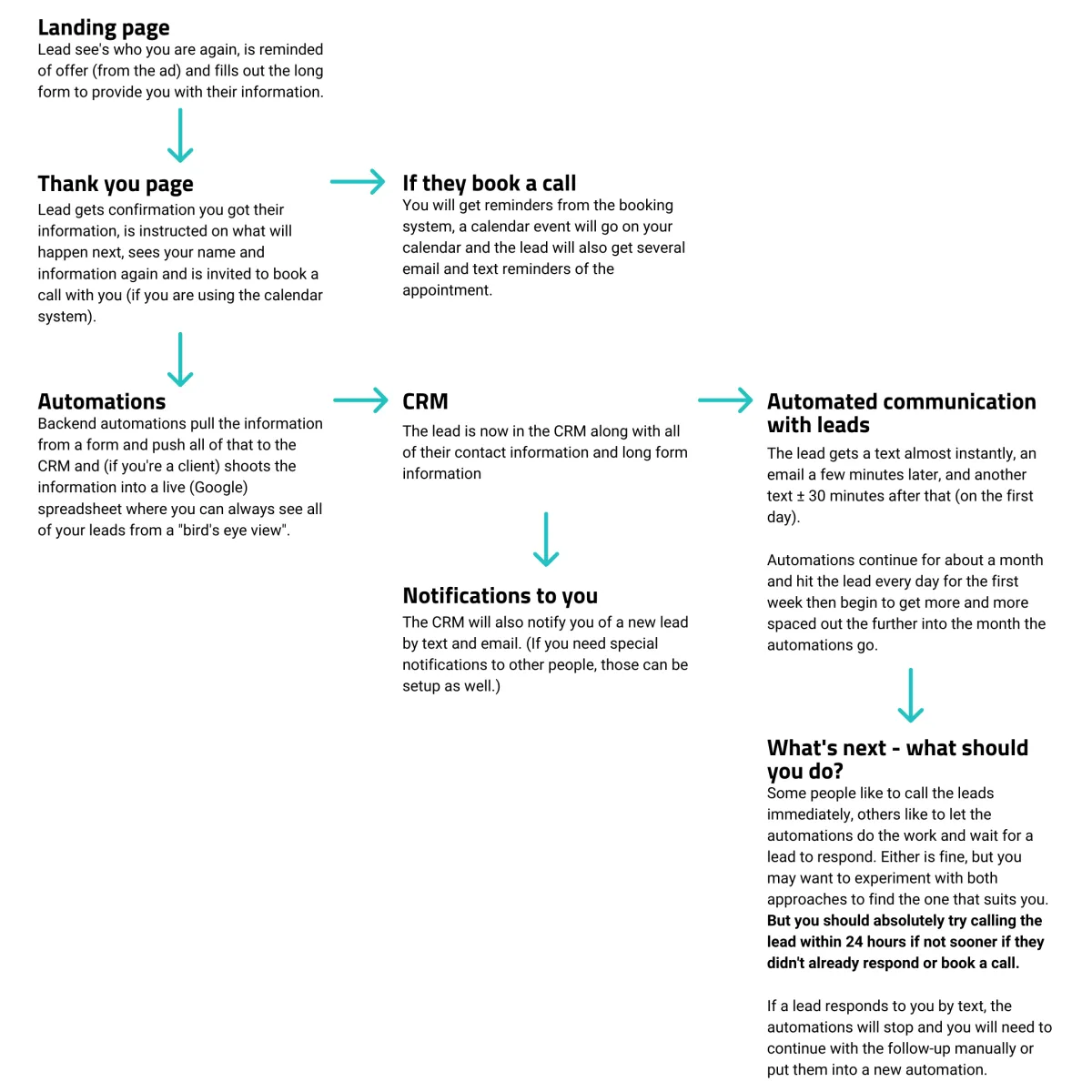
The form above is for pre-onboarding - to gather info on the products you offer, targeting, branding and more but is NOT the complete initial onboarding form - We also use this for targeting, offer, product and branding updates.